Dynamic materials
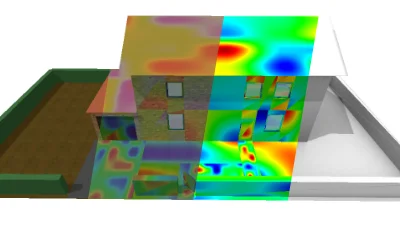
Dynamic multi-texturing
Go to gallery demo
Changing material at runtime
In single model and 3D Tiles layers, multiple materials can be defined using the materials field of SingleModelLayer or ThreeDTilesLayer. Each material has a name. When this name corresponds to the material_properties.base_material (see MaterialProperties) field of the same layer, this material is used. When the active material doesn’t exist or is not defined, the default material of the glTF model is used.
The resources associated with a material (textures, samplers and UV coordinates), only start loading in when the material is first drawn. This means that the first time using a material, there will be a short flickering. Subsequent activations will be instantaneous because materials are not destroyed until explicitly requested by deleting the material in the layer model.
Adding and removing materials
Note that resetting the entire
materialsarray is discouraged because all materials are destroyed and recreated. Instead, use the appropriate add and remove methods of the scene model path builder.
Displaying multiple materials
It is possible to display two materials at the same time on a model. To do so, use the material_properties.overlay_material field to set the name of the material to use on top. You will also need to enable the display of the overlay material, and set its appropriate opacity in the MaterialProperties structure.
The base material is computed like any other glTF material. Then the overlay material is alpha-blended on top of it. Additionally, the model color can be applied either between the base and overlay materials, or after every other material using the apply_feature_color_to_overlay field. For batched 3D models the model color is the feature color set in the styling script, and for single models it is the color field in the model.
Disabling multi-materials rendering
It is more efficient to disable multi-materials rendering by setting the
enable_overlayproperty to false than just by setting its opacity to 0.
Updating material properties
Updating the overlay opacity or feature color placement is very fast. However changing the base and overlay material names, or the overlay activation might reload some data, and hence must only be done when necessary. So be careful to only update what is necessary.
For example it is better to update the overlay and feature color placement properties in two separate scene model calls, than to collapse them in a single update of the whole material properties structure, when those are the only properties that changed.
Displaying data textures
Data textures contain arbitrary scalar floating point data. These textures can be applied to a 3D model using the SIRADEL_data_texture glTF extension. The numeric palette defined in the material is applied to this texture at runtime.
Updating the data texture palette
There is a special case for the data texture palette: when it is set directly, the material doesn’t need to be recreated.
The number of color stops in the palette is currently limited to 32.
Using dynamic textures
Dynamic textures are textures that are not directly linked to the 3D model. They can be used to display textures produced after the glTF model, however it is still necessary to provide information in the model file: the URLs of the images are resolved using the SIRADEL_templated_image_url glTF extension. The templated URLs are specified in the urls field of the material.